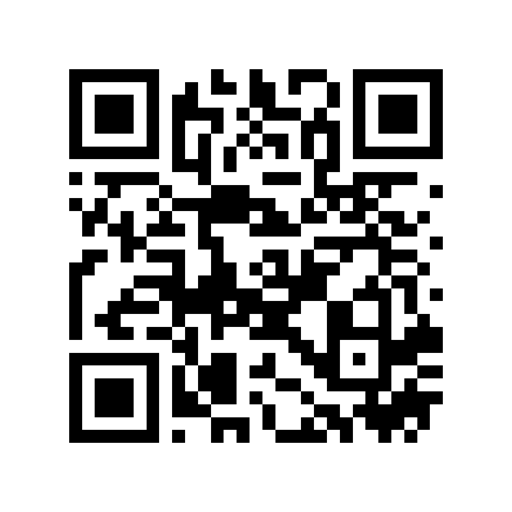
In QR Code Reader & Generator, go to Creator → + → Create QR Code → WiFi, enter your network name (SSID) and password, and tap Create. Or make a printable guest card right now in our free online Wi-Fi QR generator.
Step-by-Step: Create a Wi-Fi QR Code on Your iPhone
- Open QR Code Reader & Generator and go to Creator
Tap the Creator tab at the bottom of the app, tap '+', and select 'Create QR Code'.
- Tap 'WiFi' under Quick Create
Choose the WiFi template to open the network configuration form.
- Enter your SSID, Encryption type, and Password
Type your exact Wi-Fi Network Name (SSID), select WPA (for WPA/WPA2/WPA3), WEP, or Free (open), and enter your Wi-Fi password.
- Customize, save, or print your Wi-Fi QR code
Tap Create to save the QR code in your Creator library. Optionally add a center Wi-Fi icon and brand colors, then display it on your screen or print it for guests.
How Guests Scan Your Wi-Fi QR Code
When a visitor points their iPhone Camera, Android camera, or QR Code Reader & Generator at your Wi-Fi QR code, their phone recognizes the standard WIFI:T:WPA;S:...;P:...;; payload and asks "Join '[Network Name]' Network?"—connecting them without typing a single character.
Does my Wi-Fi name (SSID) have to match uppercase and lowercase letters?
Yes. Wi-Fi network names (SSIDs) and passwords are case-sensitive. Make sure the spelling and capitalization match your router settings.
Can I also generate a printable Wi-Fi guest card on my computer?
Yes! Use our free in-browser Wi-Fi QR Code Generator at qrreader.app/tools/wifi-qr-code-generator/ to download a ready-to-print guest Wi-Fi sign.
Related guides
Free Wi-Fi QR Code Generator — Create Printable Guest Wi-Fi Sign (No App Needed to Scan)
Generate a free Wi-Fi QR code and printable guest Wi-Fi card in your browser. Guests can scan with any iPhone, iPad, or Android camera to connect automatically.
Read guide →How to Create a Custom QR Code with a Logo & Colors on iPhone
Step-by-step guide to creating a branded QR code with your company logo, custom colors, and rounded or circle dot patterns on iPhone and iPad—plus how to validate scannability.
Read guide →Create QR Codes for Wi-Fi, Contacts, Links & Social Media on iPhone
Create QR codes on iPhone and iPad using 8 Quick Create types (URL, Text, Wi-Fi, Contact vCard/MeCard/BizCard, Phone, SMS, Email, Location) and 6 social media templates.
Read guide →